

A useful WhatsApp flow gives the customer a clear choice, collects only the information needed and ends with an answer or a human handover. In Momo Business, you can design this conversation visually, simulate it and publish a version for live use.
This guide builds a small enquiry menu with opening hours and an order-help path.
Before you start
Have a working WhatsApp connection in your workspace and a separate customer number for testing. Confirm that ordinary inbound messages and replies work first. Your role needs access to create, edit, simulate and publish message flows. Decide who will respond when the flow requests human help.
Prepare your opening hours and a short order-reference question. This example collects a reference; it does not look up an order or confirm its status.
Build the conversation
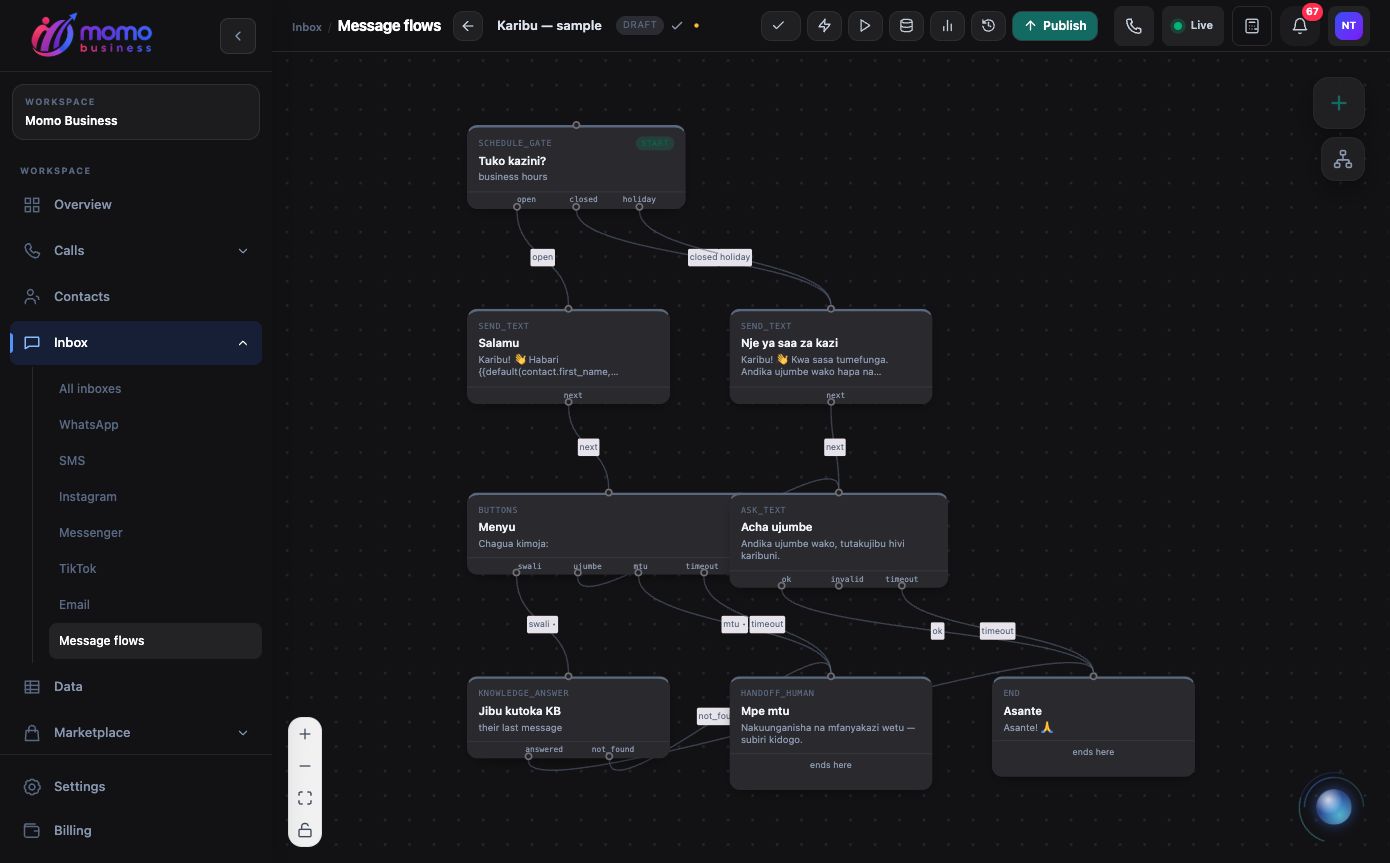
An existing welcome-flow sample illustrates the visual builder. Its branches are more extensive than the small enquiry menu built below. View full-size screenshot.
- Open Inbox → Message flows at Message flows. Select New flow, enter “Customer enquiry menu” and select Create.
- Edit the starter Greeting message to introduce your business. Add a Buttons node and connect the greeting's
nextoutput to it. In Message, enter: “What can we help you with?” Add buttons labelled “Opening hours”, “Order help” and “Talk to a person”, each with a distinct ID such ashours,orderandhuman. - Connect “Opening hours” to Send text containing your actual hours, then connect it to End. Keep the answer short and include any relevant closing-day exception.
- Connect “Order help” to Ask text. Set Question to “Please send your order reference.” Set Store the answer in to
order_ref. Leave Must be as “anything” unless you have a consistent reference format to validate. - Connect the
okpath to Hand to human. Its Message can say: “Thanks. Our team will review reference {{vars.order_ref}} and reply here.” Connect “Talk to a person” to another Hand to human node with a suitable message.
For each waiting node, configure Retries and Give up after (min). Connect its timeout path to a helpful ending or human handover. Also connect the Ask text node's invalid path for replies that still fail validation after the allowed retries.
Hand to human stops the flow and marks the conversation for human attention. A team member still needs to review and respond in the inbox. It does not guarantee that a particular colleague is available.
Choose how it starts
Open Triggers and add A keyword the customer sends. Choose is exactly and enter menu. This gives you a clear test: send “menu” from the customer number. Review other active flows for overlapping triggers before launch.
The designer saves drafts as you edit. Wait for Saved before testing. A saved draft is not yet the live version.
Test, publish and check delivery
Open Simulate and try all three buttons. Check the saved reference, an unexpected reply and repeated invalid input. Use Start over between scenarios. Toggle 24-hour window is open off to inspect how the flow behaves when ordinary WhatsApp replies are unavailable.
Select Publish and fix any reported canvas errors. After publishing, test from the customer number and confirm the messages and handover in the inbox. Existing flow sessions keep the version they started with; a newly started session uses the published version.
If nothing starts, check that the flow is active and published, the keyword matches, and the conversation is not already in another flow or under human control. If a message fails, inspect its delivery result and WhatsApp reply-window state. Use Insights for session outcomes and Versions to review releases as you refine the journey.
Assign the flow to an account
When this menu should be the usual journey for an account, open Accounts → Automations, select the WhatsApp account and choose Message flow. Select the compatible published flow, then save. Use the trigger-based approach above when testing a specific keyword on an account still using inherited defaults; do not assume a keyword overrides an explicit manual or AI choice.
For one customer's exception, use the responder control in Inbox instead. Read the account and chat automation guide before mixing these choices.
Check the handover from the team's side
After the test customer requests a person, open the same chat as the teammate who will respond. Confirm that the order reference is visible, the flow has stopped, and the teammate can send a reply from the correct account. Test with that teammate's access, since an owner may see controls other staff cannot.
If you later add a Data lookup, include a clear result for “reference not found.” Asking for a reference and finding a matching business record are separate steps.