
An AI assistant that does not answer can be behaving correctly: a teammate may have taken over, a daily limit may have been reached, or that conversation may have AI switched off. An assistant that shows Completed can still have produced an answer that needs correction. Investigate the recorded run and the customer outcome together.
This tutorial shows how to find a run, read its steps, distinguish a denied run from a failed one, and prepare a controlled follow-up test. The worked example uses a workshop's collection instructions so you can evaluate a concrete answer without asking the assistant to contact a customer or change a business record.
Prepare the incident details
You need agents.engine.view to view AI Activity and agent run histories. Changing Thinking Engine settings or using its test panel requires agents.engine.manage. Inspecting the original conversation also requires access to that conversation. Viewing a run does not grant permission to change every connected channel or business resource.
- Record the approximate time, agent name, channel and expected behaviour. Replace “AI is broken” with an observation such as “The workshop assistant did not answer the collection question received at 10:20.” If the problem concerns an unexpected action, note its recipient or record identifier too.
- Open the original Inbox conversation when applicable. Check whether a teammate replied, whether AI was switched off for that conversation, and whether an answer or action already arrived. Do this before sending another customer-facing request.
- Open AI Activity. Use All triggers to select the relevant origin, such as Inbox reply, Email reply, Call consult or API. Then use All statuses to inspect the relevant status. Start broadly if you do not yet know whether the run was denied, failed or completed.
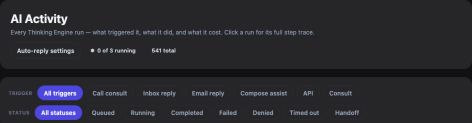
Match the agent, trigger and time before comparing status, duration and cost.
The list covers different ways the engine is used. An API test is not an inbox reply, and a short call consultation is not expected to have the same execution time as a longer background task. Compare runs serving the same purpose before deciding that one duration or cost is abnormal.
Read the status before changing settings
- Open the matching row. An agent-linked run opens its agent's detail page; a run without an agent can open a details drawer. Keep the run's UUID in your investigation notes so another authorized operator can identify the same attempt.
Use the status to choose the next question:
| Recorded state | What to investigate next |
|---|---|
| Queued or running | Whether this is still the original live attempt, and which step is active. Avoid starting a second attempt simply because the first has not finished. |
| Denied | The displayed denial reason and the relevant setting, limit or conversation state. |
| Failed or timed out | The last recorded steps, tool results and any applicable execution budget. |
| Completed | Whether the answer is accurate and any requested action actually happened. |
| Handoff | The handoff context and the teammate or assistant expected to continue. |
A denial is not automatically a model failure. A recent teammate reply, a consecutive-reply limit or an after-hours policy may intentionally keep the AI quiet. A closed channel reply window cannot be fixed by repeatedly running the same request. Account or platform restrictions need the appropriate administrator; an agent setting cannot override every higher-level restriction.

This conversation-level override stopped the run before any steps were recorded. Review the chat's intended handling before switching AI back on from its header.
For a low-balance denial, check the wallet through your normal billing process. For a daily spend or run cap, decide whether the cap is doing its intended job before raising it. A concurrency denial means other work was already in progress; it does not establish that this skipped request will automatically be replayed later.
Follow the work inside the run
- On the agent detail page, read What it was asked and What it answered. Compare them with the actual customer question. Missing context and an incorrect answer are different problems from the engine never starting.
- Read What it did, or Running now for a live run. Expand a step that has details to inspect Arguments and Result. Look for the first failed operation or unexpected input, rather than assuming the last line caused everything before it.
A tool result may be a preview, and a tool accepting work does not establish its final external outcome. If a step scheduled a message, requested approval or created a record, inspect the corresponding conversation, Approvals or Data entry. An overall failure does not roll back every earlier action.
- Compare duration with Answer budget when that panel is shown for a call consultation. A slow tool near the deadline needs a different response from an immediate validation error. Also inspect any linked child runs when another agent was consulted. Read the provider and model information at the bottom, including whether a fallback model answered.
Keep notes focused on evidence: run UUID, trigger, status, first relevant failing step and observed business outcome. Tool arguments can contain customer information, so share the run link with an authorized colleague instead of pasting a whole payload into a public discussion.
Work through a collection-instructions example
Suppose a workshop reports that its assistant failed to answer: “My repair is ready. What do I need when I collect it?” The approved instructions are: bring the job reference; collection is Monday to Friday, 09:00–17:00; another person may collect with the reference and the customer's written authorization. No payment rule has been supplied.
- Find the original attempt using the preceding steps. If it was denied because a teammate had just replied, confirm that the teammate answered and stop treating it as an execution failure. If it failed or timed out, record the last relevant step and check whether any earlier action succeeded. Keep the original run unchanged as your evidence.
- For a separate baseline test, use an agent prepared for internal text-only testing. Review its Tools, inherited agent tools and Collaboration before running anything. Ensure it has no action-capable tools or collaborators for this exercise. A prompt saying “do not act” is not a replacement for checking those capabilities.
Open the chosen agent from Manage agents, then its Thinking Engine settings. Save any intended configuration changes with Save changes before testing. The test panel uses the saved configuration; unsaved edits are not the configuration under test. Avoid changing a live customer assistant merely to create an isolated exercise.
- In Test it, enter this complete prompt:
Use only these facts to draft a short reply for a workshop employee to review. Collection is Monday to Friday, 09:00–17:00. The customer must bring the job reference. Someone else may collect with the reference and the customer's written authorization. The customer asks: “My repair is ready. Can my sister collect it, and when?” Do not invent payment requirements or send the reply anywhere.
Select Run test once. This is a real engine run: model usage is billed, and enabled tools may run. The capability check above matters even though the test is inside a settings page.
Evaluate the result and close the investigation
- Check that the answer includes all three requirements: weekday collection hours, the job reference and written authorization for the sister. It should not invent a fee, identification rule or weekend opening time. Wording can vary; factual requirements are the acceptance check.
- Inspect the test's recorded steps and cost in AI Activity. A successful text-only test establishes a baseline for that prompt and saved configuration. It does not prove that a live inbox binding, knowledge lookup, call budget or customer-facing tool now works.
If the original problem remains, correct the specific failing layer: the relevant channel setting, missing knowledge, invalid tool input or execution limit. Then plan one controlled test of that layer, with a known recipient or practice record when an action is involved. The run-history pages do not provide a general retry button. Repeating work means initiating a new request, with its own cost and possible effects.
Finish by recording what changed and the evidence that the intended result occurred. A completed run, a correct answer and a confirmed business action are three useful checks; use the ones the original incident actually requires.