
An effective ring group gives callers a second chance to reach someone without leaving them in an endless ringing loop. This tutorial builds a two-person reception group, tries the people in a deliberate order, and forwards unanswered calls to a duty manager. It then connects that group to one incoming business number and tests each outcome.
The worked example uses Bahari Reception. Neema handles first-line enquiries, Juma covers when Neema cannot answer, and the duty manager receives the final forward. Use your actual teammates and a phone the manager has agreed to answer. The goal is a complete, tested path from the customer's first ring to the last available destination.
Prepare the people and numbers
You need access to create and edit ring groups, manage their members, and edit Call Routing. You also need an assigned incoming business number and existing human-agent accounts for Neema and Juma. The human agents and browser calling guide covers account creation and first-call checks.
Check that both people have a Phone saved on their human-agent profile. The member picker may display a teammate with only a calling username, but the current add-member action can reject an account without a phone number. For this walkthrough, populate a real reachable phone before adding each member, then verify the saved member list after creation.
Have both teammates sign in, connect their usual headset if answering in the browser, and check that their availability is Online. A group name and member list do not guarantee that someone is currently able to receive a call. Also verify the duty manager's destination directly before using it as the overflow number.
Choose a ring strategy for this job
Ring All at Once is suitable when whichever free teammate answers first should take the call. One by One gives one person the first opportunity and then moves through the ordered list. We will use One by One so reception remains Neema's responsibility with Juma as cover.
Start with 20 seconds for the timeout. It is long enough for a nearby person to react while keeping the test practical. More members and longer timeouts can make callers wait substantially longer, so measure the end-to-end result instead of assuming the entered timeout is the total call wait.
Create the group in three steps
- Open Ring Groups and select New Group. If your workspace has no groups, the empty-state button is Create Ring Group.
- In 1. Config, enter Bahari Reception in Name. Add a description such as “Neema first, Juma cover, duty manager if unanswered.”
- Set Strategy to One by One and Timeout (sec) to 20. Keep Enable this ring group enabled. We will connect the incoming number after checking the group.
- Select Next to reach 2. If No Answer.
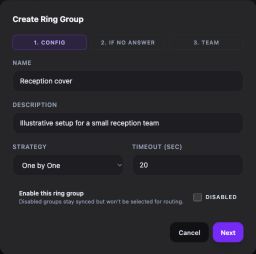
Choose the strategy and timeout before configuring what happens when the team cannot answer.
- Set If No Answer to Forward. In Forward To (E.164), enter the duty manager's actual international phone number: a plus sign, country code and full number. Remove spaces, local dialing prefixes and extensions that are not part of the destination.
- Check that the forward does not point back to the incoming business line or another route that sends the call straight back into this group. Confirm who will answer the destination and what they will do with the request.
- Select Next to reach 3. Team. Choose Neema from Add team member… and select Add. Repeat for Juma.
- Use the up and down arrow controls to put Neema first and Juma second. Verify both entries, then select Create.
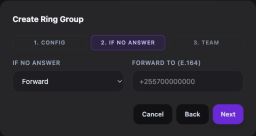
Forward provides a concrete final destination after the group has no answer. Use a number your team actually monitors.
The wizard accepts timeouts from 5 to 120 seconds and checks the forwarding number's format. Passing those checks only proves the values are structurally acceptable. It does not verify ownership, reachability or that the destination will answer.
Verify what was actually saved
- On the group list, select Open for Bahari Reception. Review 1. Config, 2. If No Answer, and 3. Team. Confirm the strategy, timeout, enabled state and forwarding number.
- In 3. Team, confirm that both members are present in the correct order. The group and members are saved through separate operations, so a group can exist even if adding a member failed. If someone is missing, correct their profile or your member-management access, add them again, and inspect the list before continuing.
Group configuration is synchronized to the calling service. If a new group is not yet available in the routing selector, refresh after the update has had time to finish. Repeatedly creating copies makes troubleshooting harder; keep one clearly named group and check its saved state.
Connect one incoming line
- Open Call Routing. Review the existing rules for the business line. If a current rule already owns that line's normal reception behavior, select Edit and change its action rather than adding an overlapping catch-all.
- For a new line, select New Rule, enter Main line — Bahari Reception, and use Add Condition → Called Number to choose the exact assigned line. Choose a priority appropriate to your rule list; lower numbers are evaluated before higher numbers.
- Under Primary Action, set Action Type to Ring Group and select Bahari Reception. For this basic example, keep Fallback Type as None because the group's If No Answer → Forward setting owns the unanswered path. Review any existing rule fallback before changing it.
- Enable the rule and select Create Rule or Save Rule, depending on whether you created or edited it. Return to the list and verify the condition and group action.
Creating a group alone does not tell an incoming line to use it. The rule is the connection between the dialed number and the group. If you add working-hours conditions, test during a matching window; the holiday routing guide explains how to manage a temporary closure separately.
Run an answer and no-answer test matrix
- Use Evaluate Sample Call with the business line as Called Number and your separate test phone as Caller Number. Select Evaluate and confirm that the intended rule selects Bahari Reception.
- Call the business line. Have Neema answer on her normal device, speak both ways, and end the call. Confirm that Juma and the manager do not receive a delayed continuation after the call has been answered.
- Call again while Neema deliberately does not answer and Juma remains ready. Verify that Juma gets an opportunity after Neema, then answers successfully.
- Repeat with neither member answering. Keep the test caller connected and time the entire wait. Confirm that the duty manager receives the forward and can hear and speak to the caller.
- Test once more with the members unavailable. Check that the actual outcome still gives the caller an acceptable route. Restore everyone's normal availability when testing is finished.
Record the caller number, business number, start time, person expected to answer, person who actually answered and total wait. This evidence is more useful than “ring group failed” if support needs to inspect a specific call. Review the corresponding entry in Call History where your access permits it.
Decide whether a queue would improve coverage
The editor also offers Queue, with Queue Wait (sec), Queue Timeout Action, and Re-ring group members while caller waits in queue. A Dispatch Agent timeout additionally requires an existing agent selection. These options change the caller's waiting experience and depend on the calling service's handling, so test the full queue and timeout behavior on your line before replacing the working forward.
Do not assume that choosing Voicemail creates a mailbox or that a queue's Forward choice inherits this tutorial's direct forwarding number. The setup panels differ. Keep the direct If No Answer → Forward path until you have verified the alternative destination and know how the team will receive any resulting messages.
Troubleshoot the stage that failed
If evaluation chooses another rule, inspect priority, called-number conditions and schedules. If the correct rule matches but nobody rings, check the group's enabled state, saved members, their phone fields and their availability. If one person is skipped, check their current ability to receive a call before changing the whole strategy.
If the group rings correctly but the final forward fails, verify the manager's full number and test it directly. If the caller waits too long, reduce the number of sequential attempts or shorten the timeout, then repeat the whole no-answer test. Finally, use the missed-call follow-up routine for calls that still end without a conversation.