
A new teammate is ready for customer calls only when their account, permissions, business-number access and browser audio all work together. This tutorial takes a human agent from invitation to a tested browser call, then checks that an incoming call can reach them through the intended route.
Our example is Neema Mushi, a new reception agent. She needs to call customers using the business's reception number, receive calls offered to her, and speak through a headset. She does not need to configure every workspace feature to do that job. The supervisor performs the setup steps; Neema performs the login and audio tests in her own account.
Gather the setup details
Prepare Neema's real work email, a unique calling username, and a reachable phone number if she will join a ring group. Also identify the business number she should use for outbound customer calls and an existing teammate whose assignments match the intended role, if you want to copy access.
The person creating the account needs permission to add human agents. Reviewing roles and resource assignments requires the corresponding Team settings access. Neema needs permission to place calls for the calling desk and to accept calls for incoming answering. A role and a number assignment serve different purposes: the role permits an action; the assignment determines which business resources she can use.
For more detail on choosing access, see team roles and workspace access. Keep a separate test phone available so you can verify an actual customer-style inbound and outbound call.
Create the human-agent account
- Open Agents, choose Human Agents if necessary, and select Add Human Agent.
- Enter Neema Mushi in Full Name and her actual work address in Email. Use the address she can open immediately; the system sends her temporary password there.
- Enter her reachable Phone in international format if she needs phone-based reachability or ring-group membership. This field is optional for creating the account, but the current ring-group add-member action can require it.
- In Username (calling address), enter a clear unique name such as neema.mushi, without the leading
@. Alternatively, leave it empty to have a calling username generated from her name. Teammates use the resulting address when calling her internally. - Choose the Role appropriate to reception work. Read its description. Do not choose a more powerful role simply to make a missing number appear; number access is checked separately.
- Review Copy access from. Choose a comparable receptionist only if Neema should receive the same inbox and number assignments. Otherwise keep No one — assign inboxes and numbers later and use the next section to make the assignments deliberately.
- Select Add Human Agent. Confirm the success message and check that Neema appears in the roster.
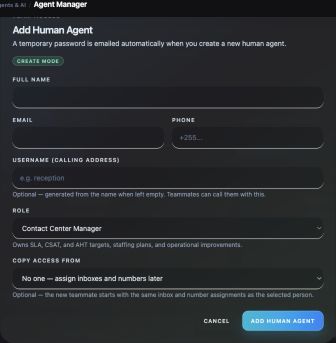
The invitation form creates the account and sends a temporary password. Copy access from also copies resource assignments, so review that choice carefully.
If the page says it could not send the onboarding email and the human agent was not created, resolve the email problem before retrying. Do not assume an account exists because the form was submitted. If creation succeeds but the teammate cannot find the message, check the address and mailbox filtering before issuing another invitation.
Give Neema the correct business line
- Open Team settings and select Inboxes & Numbers. Select Neema from Team Members.
- Under Phone Numbers, select the reception line she should use. Review the rest of the assigned items, especially if access was copied from another teammate. Select Save Assignments when there are changes.
- Open Neema from the People tab to inspect her access. Confirm the assigned role and calling access. If the role needs changing, use the role control there and select Change Role. Editing a human-agent profile directs role management to this Team hub.
For a normal agent, an empty Calling from list later in the desk is a reason to check this assignment, the role's calling scope and the line's availability. The owner's wider view is not a reliable test of what Neema sees. Finish verification while signed in as Neema.
Sign in and prepare browser audio
- Have Neema open the login link from her welcome email and sign in with her own credentials. Confirm that she is in the correct business workspace.
- Open Profile, select Password, enter Current password, New password, and Confirm new password, then select Update password. If her role does not expose these controls, have the workspace administrator review her profile access.
- Connect the headset or microphone she will use for work. In the browser's permissions for the Momo Business site, allow microphone access. Check the computer's audio input and output so speech uses the intended headset rather than an unused device.
- Check the dashboard's Availability control. Set it to Online when Neema is ready to receive calls. Keep the signed-in dashboard open during testing and interact with the page once so browser audio is allowed to start.
Allowing a microphone and being online are separate checks. A browser may connect to a call even when its microphone is unavailable, so a connected timer alone does not prove that the other person can hear Neema. Always test speech in both directions.
Place the first browser call
- Open the Calling desk. The desk may also be available from the dashboard's Make a call action. Choose Call for the ordinary business phone test.
- Under Calling from, select the reception business line. Confirm that this is the number the test recipient should see. If no line is assigned, return to the assignment checks before attempting a customer call.
- In Number, name or @username, enter the separate test phone's full international number. Review the resolved destination or number shown beneath the field. Typing a name searches for a contact; select the intended result before dialing.
- Select the green phone button, Start call. Accept the browser's microphone prompt if it appears. Watch the desk move through placing, audio connection and ringing to On call when the recipient joins.
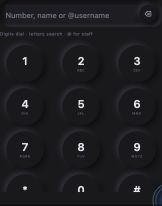
Select the business line and check the resolved destination before pressing the green phone button.
- Have the recipient say which caller number they saw. Speak a short sentence in each direction. Test Mute, verify that Neema cannot be heard while muted, then turn it off and verify speech again.
- Select the red Hang up button. Confirm the call ends and that the desk is ready for another call. Review the call in the desk's recent activity or Call History, depending on Neema's permissions.
For an internal calling test, enter a teammate's known @username and confirm the intended person answers. This tests internal reachability; it does not replace the external test of the business line. The WhatsApp call-type option is a separate path and needs a suitable configured WhatsApp calling setup, so complete the ordinary Call test first.
Verify incoming customer calls
- Have the supervisor check the incoming line in Call Routing. The line must select Neema through a Ring User action or a group that includes her. Granting her access to a number does not itself create that incoming routing rule.
- If the team uses a ring group, open it and confirm Neema appears in its saved Team list. Follow the ring group and no-answer guide for the group's complete routing and fallback setup.
- From the separate phone, call the business line. When the incoming call card appears in Neema's dashboard, choose Answer. The expanded Call Studio uses Accept for the same answering step. Confirm audio in both directions and end the call.
- Repeat while Neema does not answer, using the team's agreed test arrangement. Confirm that the intended fallback or next teammate receives the call. Restore normal availability after the test.
Diagnose the missing piece
If Add Human Agent is absent, check the creator's permissions. If the calling desk is inaccessible, check Neema's permission to place calls. If it opens but offers no outbound line, check the business-number assignment and role scope. If an internal call works but a customer call fails, investigate the external line and destination rather than recreating the account.
If an incoming call does not appear, check the routing decision, group membership, enabled state and availability. New agent and group changes also need to reach the calling service. Capture the test time, caller number, called number and observed result if the saved settings look correct but calls still fail.
If the call connects with one-way audio, check microphone permission, headset input, mute state and output volume. Reconnect the intended audio device and repeat a short two-way test. If the dashboard shows an incoming card without an audible ring, check whether the browser tab is muted and interact with the page before testing again.
Once Neema can place a call, receive a routed call, speak both ways and complete the fallback test, record the tested business line and date in your onboarding notes. Repeat those checks when her role, number assignment or working device changes.