
A useful follow-up list answers a precise question: which records need attention, from which team, by what date? Data's Records view lets you combine conditions, search within the result, and arrange the columns you need while working through the list.
This tutorial follows a repair business preparing its morning callback list. The coordinator wants unfinished repairs at the Central branch with a follow-up date before 10 September 2026. The same method works for overdue quotations, incomplete service requests, or stock checks awaiting an answer.
Before you begin
You need access to Data and a table you can view. Editing records needs record-editing access; creating or changing fields needs management access. You can practice filtering without changing a customer's record.
Allow about 20 minutes. The example assumes a table called Repair follow-ups practice with Text fields for Reference, Customer, Branch, and Owner; a Date field named Due date; and a Select field named Stage with New, Waiting, and Complete options. If you need to create it, follow the Data table setup guide.
The filters in this workflow belong to your current table workspace. There is no Save view step or named saved-view collection. Column layout preferences can stay in the same browser, but that does not save the filter conditions as a shared team view.
1. Prepare records with an answer you can check
In a practice table, use Records → Add record to enter the following fictional rows. The dates are fixed so your results are repeatable whenever you try the exercise.
| Reference | Customer | Branch | Stage | Due date | Owner |
|---|---|---|---|---|---|
REP-401 |
Harbour Café Demo | Central | New | 8 September 2026 | Asha |
REP-402 |
Kijani Books Demo | Central | Waiting | 9 September 2026 | Asha |
REP-403 |
Lake Office Demo | Central | Complete | 8 September 2026 | Ben |
REP-404 |
East Workshop Demo | East | New | 8 September 2026 | Ben |
REP-405 |
Riverside Studio Demo | Central | New | 11 September 2026 | Asha |
Before filtering, confirm that all five rows appear. For a live table, identify a few known examples that should qualify and a few that should be excluded. This is more reliable than judging a filter by whether its result “looks about right.”
2. Start from the table's Records tab
Open Data, select the table, and choose Records. Check the search box and any filter chips above the grid.
If you arrived from a report or a flow's Data tab, a separate preset chip may already narrow the records. Review it before adding conditions. Remove that preset with its close control if you intend to work from the full table, then clear ordinary chips and search text. Your permissions still determine which table data is available to you.
For this example, begin with no active search or filters so every exclusion has an explanation.
3. Restrict the list to the Central branch
Select Add filter. Set Field to Branch, choose Condition → is, enter Central, and select Add.
The filter appears as a chip and the grid reloads. Four of the five example records should remain. REP-404 belongs to East, so it should disappear.
Use the exact branch label your table stores. A text field allows spelling variations; if colleagues mix “Central,” “Central branch,” and abbreviations, agree on consistent values or ask a manager to design a Select field for future use.
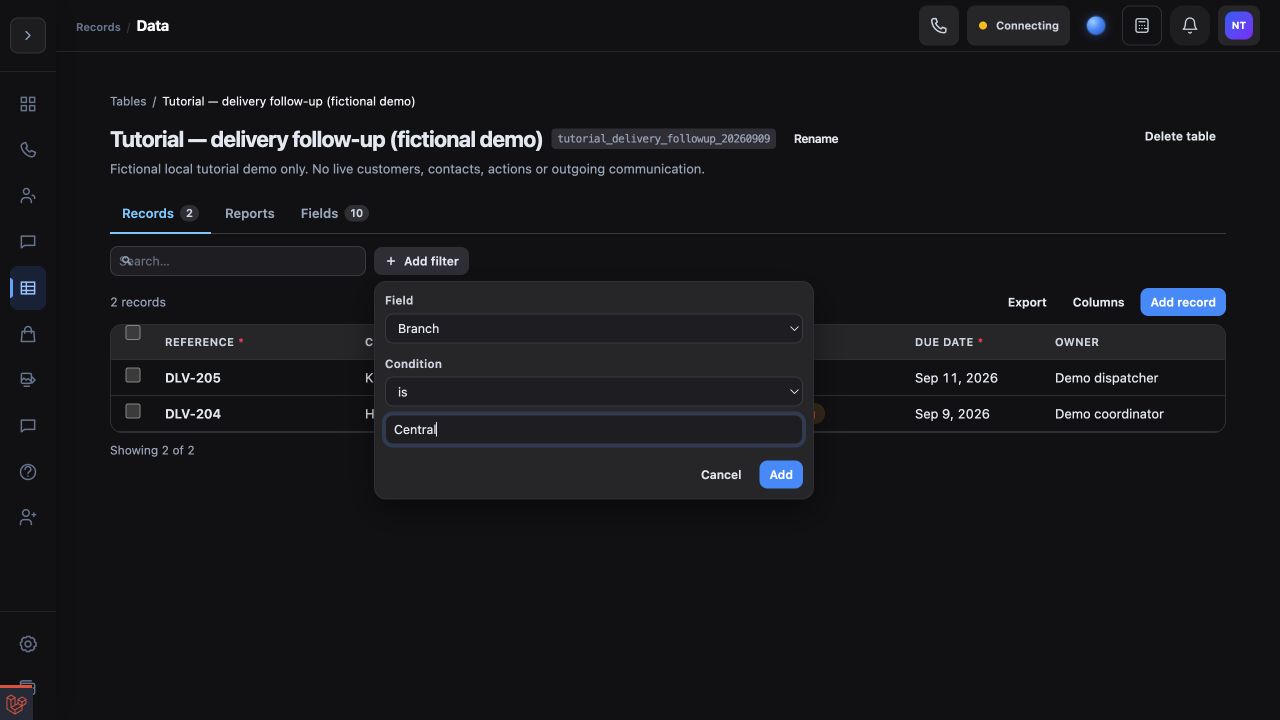
Illustrative local demo with fictional records. Add one condition, then check its effect before narrowing the list further. Open the screenshot.
4. Include both unfinished stages
Select Add filter again and choose Stage. Set the condition to is any of, select New and Waiting, then select Add.
Three records should remain: REP-401, REP-402, and REP-405. Complete is excluded, so REP-403 disappears.
Separate filter chips are combined with and: the record must belong to Central and meet the Stage condition. Inside the is any of condition, either New or Waiting qualifies. Do not add one chip saying “Stage is New” and another saying “Stage is Waiting”; a single Select value cannot satisfy both at once.
5. Add the follow-up deadline
Select Add filter → Due date. Choose less than, keep the date mode set to exact, and enter 10 September 2026. Select Add.
Your result should now contain REP-401 and REP-402. The date on REP-405 is later, so it is excluded. The condition is strictly before the date you entered. For a real morning list that should include everything due today, use tomorrow's date as the cutoff for a Date field.
Keep a separate check for records without a due date. A blank does not mean “overdue.” To find those records, edit the Due date chip, change its condition to is empty, and select Update. Then restore the deadline condition when you return to the callback list.
6. Arrange the columns for the conversation
Select Columns. In Show, hide and order columns, leave Reference, Customer, Due date, Stage, and Owner visible. Use the up and down controls to put the reference and customer first. You can hide Branch while every displayed row is already Central, provided you retain the Branch filter chip as context.
Drag a column header's resize edge if a reference or customer name is cut off. These changes affect the browser's grid layout; they do not remove fields or erase stored values. Reset layout returns to the table's default arrangement.
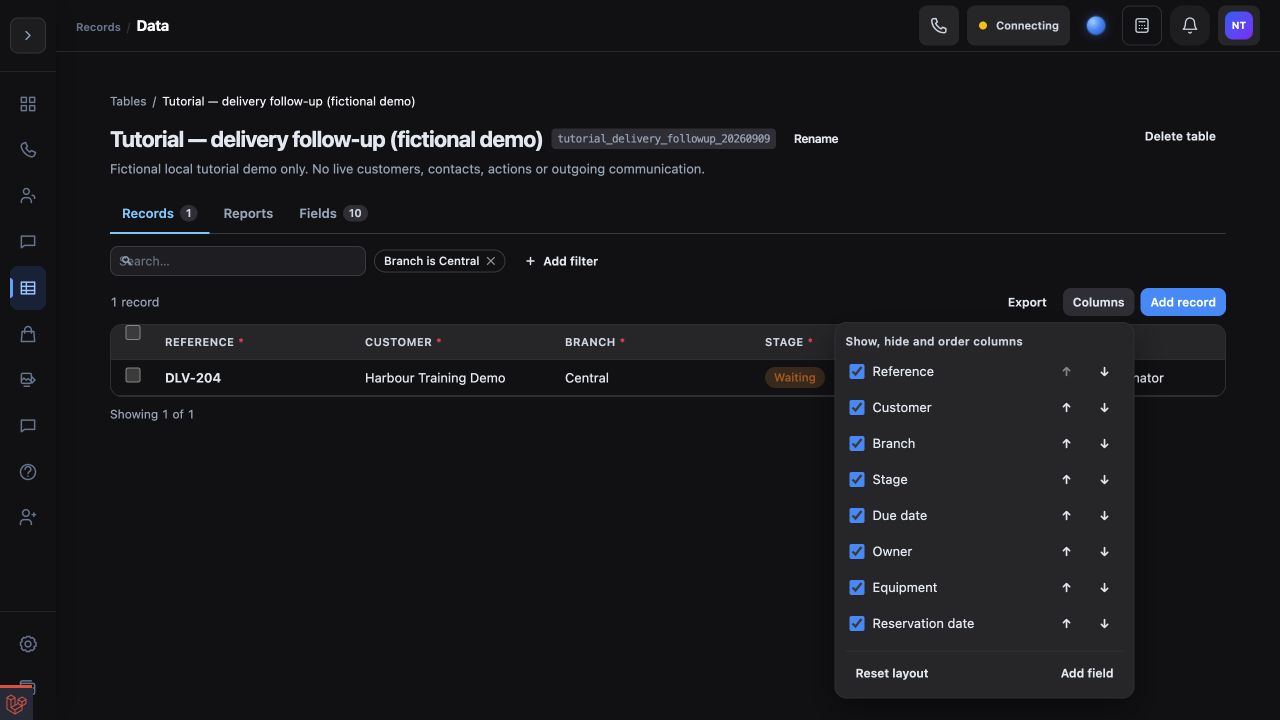
Illustrative local demo with fictional records. Keep the active conditions visible while arranging the fields used during follow-up. Open the screenshot.
If you want oldest due dates first, click the Due date column heading and check the ascending indicator. A larger table may require an index before it can sort that field. If sorting is refused, ask a table manager to review indexing in Fields and use the available order meanwhile.
7. Find and inspect one matching record
Type REP-402 in Search… and press Enter. Search narrows the already filtered result; it does not remove your Branch, Stage, or Due date conditions. Use the arrow at the right of the matching row to open its details.
Search is intended for text-like fields and covers a limited number of them. If a known reference does not appear, clear Search and add a condition directly on Reference using is. Use date and number filters for dates and amounts instead of expecting free-text search to inspect every field.
Before a real callback, confirm the record's current notes and owner. Filtering a row neither contacts the customer nor assigns work automatically. Use your team's normal communication process, then update only the fields that reflect what actually happened.
8. Recheck the list after changes
In the practice record REP-402, change Stage from Waiting to Complete and select Save changes. Clear the reference search and reapply the list conditions, or refresh and rebuild them, so the server checks the updated records. Only REP-401 should remain.
Rechecking matters because a record you just edited may still be displayed until the list is queried again. Do not infer that the Stage rule failed solely because the edited row remains momentarily visible.
Record your filter recipe in the team's operating notes: Central; Stage is any of New or Waiting; Due date less than the next day. The next coordinator can rebuild and verify it without assuming your current browser view is shared.
9. Export only after verifying the scope
If a colleague needs a CSV copy, clear any one-record search you no longer intend, review all active chips, and use Export above the grid. This action uses the active query. A CSV is a snapshot; editing it does not update Data.
Do not assume hiding a column in the browser removes it from the export. Open the downloaded file and check both the included records and fields before sharing it through an approved channel. If you need recurring report delivery instead, use the separate scheduled business reports guide.
Troubleshoot an unexpected list
Nothing matches: remove the most recent chip and check whether records return. Look for two conflicting conditions on the same field, a forgotten search term, or a preset from a report.
A completed repair remains: verify its stored Stage and query the list again after editing. A note saying “finished” does not change a Select field.
Records disappear after reopening the page: inspect the current chips and rebuild the recipe. Temporary filters and browser column preferences have different lifetimes.
The count exceeds the visible rows: use Load more at the bottom when available. The first loaded page is not necessarily the complete result.
Your finished routine should produce a list whose inclusions and exclusions you can explain record by record. For cleaner future entries, continue with required and unique field rules.