
A duplicate reservation or a missing equipment reference can cause trouble long before somebody notices a wrong total in a report. Data field rules let you catch those mistakes while a record is being entered. This tutorial builds and tests a small reservation register using Required, Unique, and Unique together.
The example is a training equipment store that lends one item for a whole day. One record represents one item reserved for one date. The same item can be reserved again tomorrow, and one customer can reserve different items today. Two records must never reserve the same item on the same date.
Before you begin
You need access to Data, permission to manage the table's fields, and permission to edit its records. Table-specific access rules may further restrict those permissions. Use an empty practice table for the exercises; changing rules on an established table can affect colleagues and connected flows.
Allow about 25 minutes. Have three fictional reservation references ready and decide how your team identifies equipment. Use a stable equipment code, such as PROJECTOR-01, rather than descriptions that vary between people. If creating tables is new to you, keep the Data table setup guide nearby.
1. Define the rule in business terms
Write the following sentence in your working notes: “A reservation needs a reference, an equipment code, a date, and a customer; each reference is used once; each equipment-and-date combination is used once.”
That sentence distinguishes three checks:
| Check | What it prevents | Example |
|---|---|---|
| Required | Saving an incomplete new reservation | Equipment is missing |
| Unique | Reusing an individual value | Two records both use RES-301 |
| Unique together | Reusing a combination of values | Two records reserve PROJECTOR-01 on 15 September 2026 |
Do not make Customer or Equipment individually unique. Either choice would block legitimate repeat business. This example also does not model overlapping times: a date rule suits whole-day reservations, not a booking service that needs several time slots each day.
2. Create a dedicated practice table
Open Data → New table. Name it Equipment reservations practice and describe it as “One equipment item reserved for one whole day; fictional training records.” Review the generated slug and select Create table.
Open Fields. The usage line shows how many fields and indexes the table uses. Check that it has room for your new fields and rules. An index supports fast lookups or a uniqueness rule; the number available is limited, so use the capacity for rules that your process actually needs.
3. Add a required, unique reservation reference
Select Add field. In New field, enter Name Reservation reference, confirm Key reservation_reference, and choose Type → Text.
Under Rules, select Required and Unique. The editor explains that a unique field already has an index, so you do not need an additional ordinary index. Under Display, add this Help text: “Use the reservation reference from the booking request, for example RES-301.” You may also select Use as the record's title so the reference identifies the record clearly.
Select Add field, then confirm that the field appears in the Fields list with its required and unique indicators.
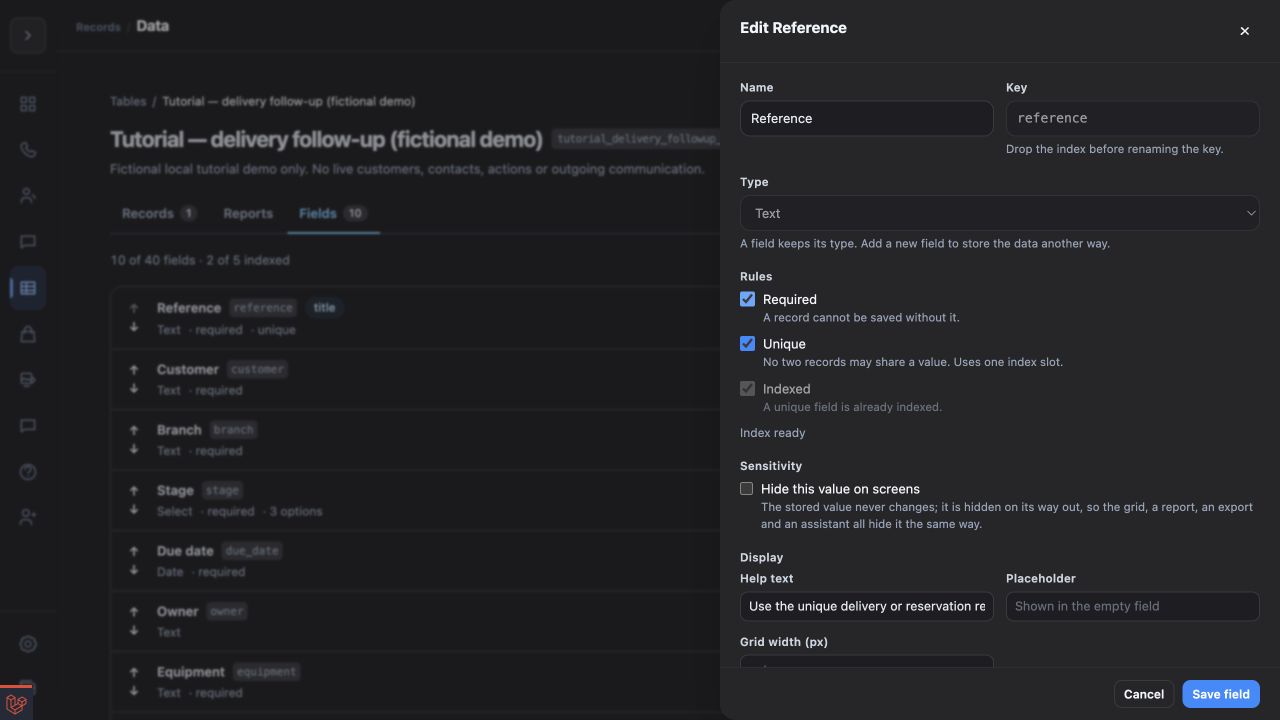
Illustrative local demo. The field editor separates completeness, uniqueness, and indexing. Open the screenshot.
4. Add the fields that describe the reservation
Use Add field again for each row below. Review the key before saving; connected flows and API clients refer to keys, while the Name is what people read.
| Name | Key | Type | Required |
|---|---|---|---|
| Equipment | equipment |
Text | Yes |
| Reservation date | reservation_date |
Date | Yes |
| Customer | customer |
Text | Yes |
| Notes | notes |
Text | No |
For Equipment, add help text such as “Use the exact inventory code, including its number.” Leave Unique off for these four fields. Keep required fields visible in the record form; hiding a field that people must fill makes the workflow difficult to complete.
An existing field keeps its type. If you accidentally created Reservation date as Text, plan a correctly typed new field before entering real records. Renaming a field does not convert its stored values into dates.
5. Add the combination rule
In Fields, scroll to Unique together and select Add rule. Select Equipment and Reservation date, then select Add rule in the rule editor.
The picker accepts two to four fields. Select only the pair that represents the business restriction. Adding Customer would weaken this particular rule: two different customers could then reserve the same equipment on the same day because the three-field combinations differ.
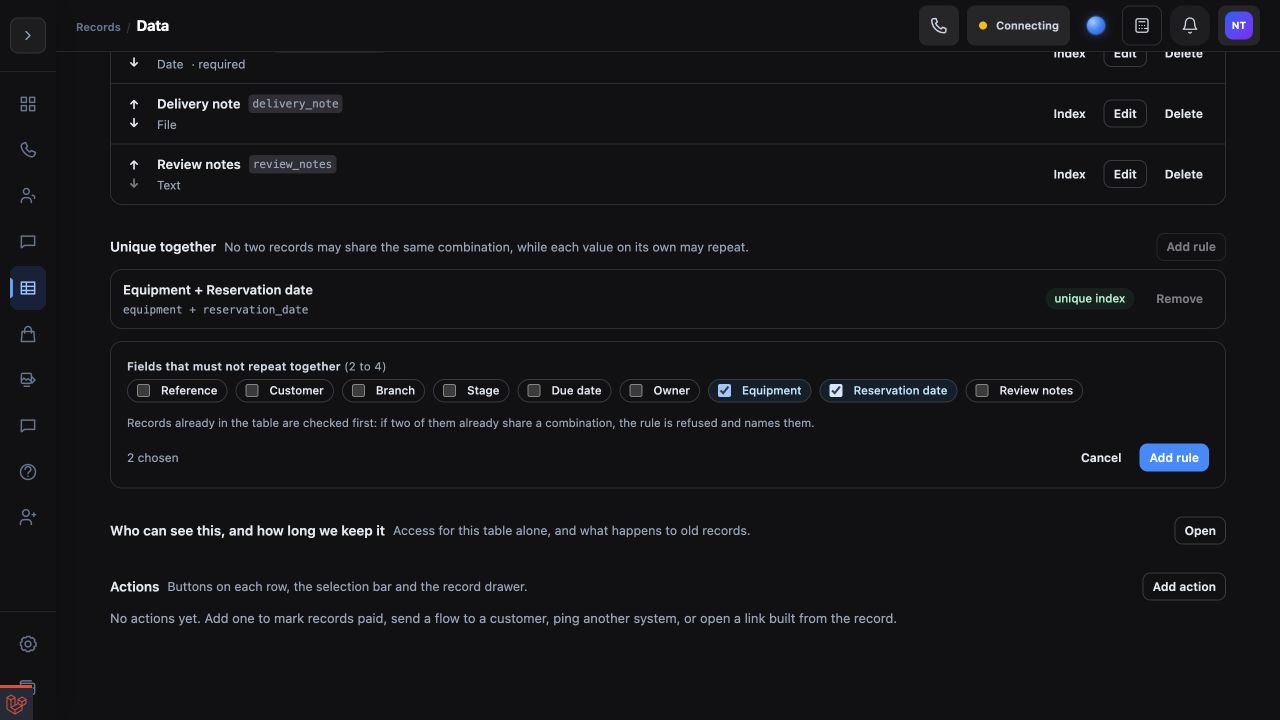
Illustrative local demo. Choose the smallest combination that defines a duplicate in your process. Open the screenshot.
The rule checks existing records before it is accepted. Index creation then runs in the background. Review the status shown beside the rule and refresh the table if necessary; a pending or failed status deserves attention before you depend on it for everyday bookings.
6. Save the first valid reservation
Return to Records → Add record and enter:
| Field | Value |
|---|---|
| Reservation reference | RES-301 |
| Equipment | PROJECTOR-01 |
| Reservation date | 15 September 2026 |
| Customer | Harbour Training Demo |
| Notes | Collect at opening time; whole-day reservation |
Select Add record. Use the arrow at the right of the saved row to open it and confirm all four required values. This gives you a known valid record against which to test the other rules.
7. Test missing information and duplicate references
Select Add record again. Enter RES-302 and a customer, but leave Equipment blank. Attempt to save. The form should identify the missing required value and keep the unsaved record open for correction.
Fill Equipment with SCREEN-01 and set the date to 15 September 2026. Change the reference to RES-301, which already exists. Attempt to save again. The duplicate reference should be refused. Restore the new reference RES-302 and save; a screen and a projector can both be reserved on the same date.
These two failed attempts should not create additional records. Return to the grid and confirm that you have the two successful reservations.
8. Test the pair independently
Start a third record with reference RES-303, equipment PROJECTOR-01, date 15 September 2026, and customer Riverside Workshop Demo. Its reference is new, but the equipment-and-date pair duplicates the first record. Saving should fail with a uniqueness error.
Change only the date to 16 September 2026 and save again. That reservation should succeed. Your table should now contain three valid records: two different items on the first day and the projector again on the next day. This verifies that the pair rule rejects a collision while allowing a sensible repeat.
9. Apply the lessons to an existing table
Before adding rules to live records, review missing values and duplicates with Records → Add filter. Correct the underlying records according to the source booking information. Required does not manufacture missing historical information, and uniqueness does not decide which of two bookings is valid.
If adding Unique reports duplicates, the field itself may already have been saved while the separate uniqueness request failed. Reopen Fields and inspect its indicators before retrying. Avoid creating another field with the same purpose merely because the drawer stayed open.
If a check behaves unexpectedly
A valid repeat is blocked: review whether you marked Equipment or Customer individually unique, or chose too few fields for a combination. Use the business sentence from step 1 to assess the rule before changing it.
A rule cannot be added: check the indexed usage count, existing duplicates, and the rule status. If background index creation remains pending or failed, ask the workspace administrator to investigate it. Deleting unrelated fields is not a useful response to an index limit.
A required field still contains older blanks: fill and review the historical records separately. Required validation protects new entries and attempts to clear the field; it is not a cleanup operation for old data.
A flow starts failing after the change: compare its field keys and supplied values with the new rules. Test the complete write with fictional records before resuming normal use. The Data API schema guide explains the same field definitions for integrations.
When your tests match the expected outcomes, document the chosen codes and duplicate definition for colleagues. Continue with focused follow-up filters to make reliable records easier to work through.